Content feed Comments Feed

STARTING GENIUS MAKER

Posted by saleem Monday, September 14, 2009

If you are using Free edition, then 9 software modules will have the tag "FREE" and the remaining are provided for trial. If you are using Registered Premium edition, no tag is displayed.

Just click any one of the software button, the corresponding software window gets opened. After using any software module, close that window. Now you will be seeing the main window again. You may now choose any other software and click its button. The corresponding software window gets opened. Similarly, you may open any software by clicking the button corresponding to that software.

Other buttons

On top of the main window, you can see 4 buttons namely Help, About, Registration and Theme.
  • Help button is provided in all windows of Genius maker software. Whenever you are in need of help, just click the "Help" button in that section. The software will display the help tutorial pertaining to that section.
  • About button gives information regarding the version of this software etc.
  • On clicking the registration button, the registration window opens, through which you can register and activate the software.
Theme button will help you select a suitable colour theme of your choice for Genius Maker.

Installation Procedure for FREE edition:

  • Log on to your computer with administrative privileges.

  • Execute the downloaded file GeniusMakerFree.EXE by double clicking it.

  • The Installation wizard opens and it will guide you through the entire installation process.

  • After the completion of installation process, the Genius maker icon will be placed on to your desktop.

  • Just double click that Genius Maker icon anytime to open Genius maker software.

  • You may note the following 2 points.

    • Free modules: Those software modules which are marked as FREE will never expire and you can use them for ever without any restriction.

    • Trial modules: Those software modules which are not marked as FREE is given to you for Trial purposes. The use of these software modules are subject to a few restrictions. The restriction varies from one module to another. Moreover, these trial modules itself will function only for a few limited number of trials and later on they will cease to function.

Installation Procedure for PREMIUM edition:

  • IMPORTANT NOTE: You should install the software on the intended computer only. Because the product serial number displayed by this software is machine dependent and hence it varies from one computer to other.

  • Log on to the intended computer with administrative privileges.

  • Uninstall any previous versions, including Free edition of Genius Maker.

  • Execute the supplied file GeniusMakerPremium.EXE by double clicking it.

  • The Installation wizard opens and it will guide you through the entire installation process.

  • After the completion of installation process, the Genius maker icon will be placed on to your desktop.

  • Just double click that Genius Maker icon anytime to open Genius maker software.

  • You may note the following 2 points.

    • Immediately after opening you will see that the software functions exactly similar to that of FREE edition. But when you click the "Registration" button on top of the main window of Genius Maker, you will see a window similar to the one shown in next section. It displays the Product Serial number of your software License and the boxes for entering your product activation code.

    • The software becomes a registered Premium edition only after the successful registration and activation.

Registration Procedure:

  • The registration of Genius Maker can be done only with the Premium edition.

  • Log on to the computer with administrative privileges.

  • Open the Genius Maker software.

  • Click "Registration" button from top of the Main window.
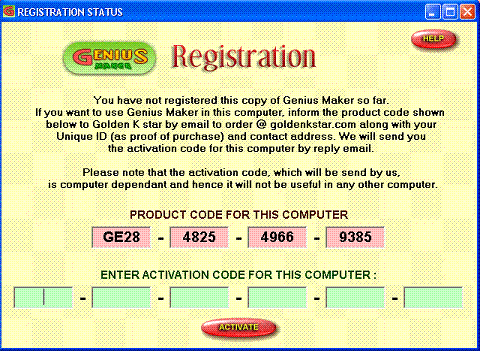
  • Registration window gets opened as shown here. It displays the Product code of your software License and the boxes for entering your product activation code. A typical Product code will read like the following.

GE28 - 4825 - 4966 - 9385

  • Note down the Product code displayed in your computer carefully.

  • Send an email to us, mentioning the above Product code and Unique ID, which you would have obtained along with CD-ROM.

  • Golden K star will communicate the Product Activation code by reply email. A typical Product Activation code will read like the following.

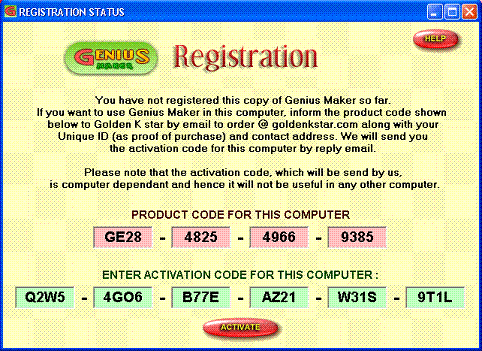
    Q2W5 - 4GO6 - B77E - AZ21 - W31S - 9T1L

  • Open the Genius Maker software.

  • Click "Registration" button from top of the Main window.

  • Registration window gets opened.

  • Enter the received activation code carefully onto the Product activation boxes as shown below.
  • Click "Activate" button.

  • If you have done it correctly, a pop-up window will appear and inform you that you have successfully registered that copy of Genius maker.

Posted by saleem


DOWNLOAD THIS SOFWARE TO RUN ALL THOSE POSTED SOFTWARE


PERMUTATION and COMBINATION

Posted by saleem

How to start with Permutation and Combination software ?

  • Open Genius Maker software and click "Permutation and Combination" button. It opens the Permutation and Combination window.
  • Using "Select the condition" box, you can switch between Permutation and Combination.
  • The middle box provides interface for entering input and reading output.

EXAMPLE - 1 ( Permutation )

  • Let us compute 6P2
  • Cilck "Permutation" button.

  • Enter the value of n as "6"

  • Enter the value of r as "2"

  • Click "Solve" button.

  • Now we can see that the software solves for 6P2 and displays the result of nPr as " 30 ".

EXAMPLE - 2 ( Permutation )

  • Let us find the value of 'n' , where nP5 = 240240
  • Cilck "Permutation" button.

  • Click "Clear data" button.

  • Enter the value of r as "5"

  • Enter the value of nPr as "240240"

  • Click "Solve" button.

  • We can see that the software solves for the unknown and displays the result of n as "14".

EXAMPLE - 3 ( Permutation )

  • Let us find the value of 'r' , where 16Pr = 57657600
  • Cilck "Permutation" button.

  • Click "Clear data" button.

  • Enter the value of n as "16"

  • Enter the value of nPr as "57657600"

  • Click "Solve" button.

  • We can see that the software solves for the unknown and displays the result of ' r ' as "7".

EXAMPLE - 4 ( Combination )

  • Let us compute 22C12
  • Cilck "Combination" button.

  • Click "Clear data" button.

  • Enter the value of n as "22"

  • Enter the value of r as "12"

  • Click "Solve" button.

  • Now we can see that the software solves for 22C12 and displays the result of nCr as "646646".

EXAMPLE - 5 ( Combination )

  • Let us find the value of 'n' , where nC24 = 62852101650
  • Cilck "Combination" button.

  • Click "Clear data" button.

  • Enter the value of r as "24"

  • Enter the value of nCr as "62852101650"

  • Click "Solve" button.

  • We can see that the software solves for the unknown and displays the result of n as "40".

EXAMPLE - 6 ( Combination )

  • Let us find the value of 'r' , where 32Cr = 565722720
  • Cilck "Combination" button.

  • Click "Clear data" button.

  • Enter the value of n as "32"

  • Enter the value of nCr as "565722720"

  • Click "Solve" button.

  • We can see that the software solves for the unknown and displays the result of ' r ' as below.

" 15 and 17 "

  • This implies that the current problem has 2 solutions. One is " r = 15 " and " r= 17 ". In other words it implies that 32C15 = 32C17 = 565722720

Additional Feature

  • Calculation Display: Whenever a problem is successfully solved, we can see the calculation of that problem in the "Calculation" box.

GEOMETRY SOLVER

Posted by saleem

How to start with Geometry solver software ?

  • Open Genius Maker software and click "Geometry Solver" button. It opens the Geometry Solver window.
  • On top of that window, you can see 36 options of geometries to choose from.
  • Default option is " Equilateral Triangle "

EXAMPLE - 1:

  • In the bottom panel, a blinking label instructs to " Enter any one parameter ". The parameters mentioned are Side, Perimeter and Area. Now you may enter any value of your choice. Please follow the steps given below to learn how to do this.
    • Enter a value of 15 in the perimeter box and then click "Solve". You will see that the software computes other values and displays the values of side and area as 5 and 10.825 respectively.
    • Now clear all data.
    • Enter a value of 32 in the area box and then click "Solve". You will see that the software computes other values and displays the values of side and perimeter as 8.59 and 25.78 respectively.

EXAMPLE - 2:

  • Now, let us select and solve for another geometry.
  • Let us select " Semi-cylinder" form the top panel.
  • In the bottom panel, a blinking label instructs to " Enter any 2 parameters ". The parameters mentioned are Radius, Height, Surface area and volume. Now you may enter any 2 values of your choice. Please follow the steps given below to learn how to do this.
    • Enter a value of 6 in the radius box and 150 in the surface area box. Then click "Solve". You will see that the software computes other values and displays the values of height and volume as 1.196 and 67.64 respectively.
    • Now clear all data.
    • Enter a value of 2 in the height box and 23 in the volume box. Then click "Solve". You will see that the software computes other values and displays the values of radius and surface area as 2.7 and 50.82 respectively.

  • You may practice the same procedure with all 36 geometries given in the top panel.
  • IMPORTANT NOTE : If you enter more than the requested number of parameters, the software will take only the top parameters and the rest will be ignored. For instance, in the case of equilateral triangle, if you enter values for "side" as well as "perimeter", only the value for "side" will be taken into account and the "perimeter" value will be ignored and over-written by the calculated value.

  • While solving, if there are more than one solution for the problem, the software will indicate the same in a pop-up window.

Additional Features:

  • Geometry display: Whenever you click the option for any of the 36 geometries given in the top panel, a pictorial view of that geometry will get displayed in the bottom panel.

  • Formula display : Whenever you click the option for any of the 36 geometries given in the top panel, the mathematical formula showing the relationship of dimensional parameters of the geometry with that of the perimeter, area volume etc of the geometry will get displayed in the bottom panel.

Number System Software

Posted by saleem

How to start with Number System software ?

  • Open Genius Maker software and click "Number System Software" button. It opens the Number System Software window as shown above.
  • It shows 4 calculators namely Binary (base 2), Octal (base 8), Decimal (base 10) and Hexadecimal (base 16). You may note that, each calculator show only buttons which are relevant to that number system.
  • At the bottom panel you can see a set of common arithmetic operators for addition, subtraction, division and multiplication. The "C" button is meant for "Clear all" and the "CE" button is meant for "Clear Error" as in the case of any calculator. Please note that these operators are common for all number systems.

EXAMPLE: 1

  • Let us take an example.
  • Click " C " button from the common operators box to clear of any existing calculation.
  • Click the Buttons "1" and "2" in the Decimal system calculator.
  • You will be seeing the following changes.
    • Decimal system calculator displays " 12 "
    • Binary system calculator displays " 1100 "
    • Octal system calculator displays " 14 "
    • Hexadecimal system calculator displays " C "
  • It implies the following.
    • The number 12 in decimal system is equal to number 1100 in binary.
    • The number 12 in decimal system is equal to number 14 in octal.
    • The number 12 in decimal system is equal to number C in hexadecimal.
  • Now press " + " button from the common operators box.

  • Click the Button "5" in the Decimal system calculator.
  • You will be seeing the following changes.
    • Decimal system calculator displays " 5 "
    • Binary system calculator displays " 101 "
    • Octal system calculator displays " 5 "
    • Hexadecimal system calculator displays " 5 "
  • It implies the following.
    • The number 5 in decimal system is equal to number 101 in binary.
    • The number 5 in decimal system is equal to number 5 in octal.
    • The number 5 in decimal system is equal to number 5 in hexadecimal.
  • Now press " = " button from the common operators box.

  • You will be seeing the following changes.
    • Decimal system calculator displays " 17 "
    • Binary system calculator displays " 10001 "
    • Octal system calculator displays " 21 "
    • Hexadecimal system calculator displays " 11 "
  • It implies the following.
    • The number 17 in decimal system is equal to number 10001 in binary.
    • The number 17 in decimal system is equal to number 21 in octal.
    • The number 17 in decimal system is equal to number 11 in hexadecimal.
  • In brief, the meaning of operations we did just now are as follows.

    • In Decimal system, 12 + 5 = 17

    • In Binary system, (1100)2 + (101)2 = (10001)2
    • In Octal system, (14)8 + (5)8 = (21)8
    • In Hexadecimal system, (C)16 + (5)16 = (11)16

EXAMPLE: 2

  • Now let us try another example.

  • Click " C " button from the common operators box to clear of any existing calculation.
  • Type 101 in binary by clicking the Buttons "1", "0" and "1" in the binary system calculator.
  • You will be seeing the following changes.
    • Binary system calculator displays " 101 "
    • Octal system calculator displays " 5 "
    • Decimal system calculator displays " 5 "
    • Hexadecimal system calculator displays " 5 "
  • It implies the following.
    • The number 101 in binary system is equal to number 5 in octal.
    • The number 101 in binary system is equal to number 5 in decimal.
    • The number 101 in binary system is equal to number 5 in hexadecimal.
  • Now press " x " button from the common operators box.

  • Type 110 in binary by clicking the Buttons "1", "1" and "0" in the binary system calculator.
  • You will be seeing the following changes.
    • Binary system calculator displays " 110 "
    • Octal system calculator displays " 6 "
    • Decimal system calculator displays " 6 "
    • Hexadecimal system calculator displays " 6 "
  • It implies the following.
    • The number 110 in binary system is equal to number 6 in octal.
    • The number 110 in binary system is equal to number 6 in decimal.
    • The number 110 in binary system is equal to number 6 in hexadecimal.
  • Now press " = " button from the common operators box.

  • You will be seeing the following changes.
    • Binary system calculator displays " 11110 "
    • Octal system calculator displays " 36 "
    • Decimal system calculator displays " 30 "
    • Hexadecimal system calculator displays " 1E "
  • It implies the following.
    • The number 11110 in binary system is equal to number 36 in octal.
    • The number 11110 in binary system is equal to number 30 in decimal.
    • The number 11110 in binary system is equal to number 1E in hexadecimal.
  • In brief, the meaning of operations we did just now are as follows.

    • In Binary system, (101)2 x (110)2 = (11110)2

    • In Octal system, (5)8 x (6)8 = (36)8
    • In Decimal system, (5)10 x (6)10 = (30)10
    • In Hexadecimal system, (5)16 x (6)16 = (1E)16
  • Now you may try using octal and hexadecimal number system calculators by the similar procedure and see the simultaneous change in all number systems.

  • Important Note: The fractional numbers are not supported and hence the division operation always rounds the result to the whole integer

DETERMINANT

Posted by saleem

How to start with Determinant software ?

  • Open Genius Maker software and click "Determinant" button. It opens the Determinant window as shown above.
  • It automatically shows numbers in the square matrix -A. These numbers are provided to assist you to quick start Determinant software. You may clear that data by pressing the "Clear data" button and enter a fresh set of values whenever needed.
  • Click "Find Determinant" button.
  • You may see that the value of determinant of the entered matrix is displayed on the right side box.

EXAMPLE

  • Let us take an example.
  • Define the size of the Matrix-A as 3 x 3
  • You may see that the size of Matrix-A changes accordingly.
  • Click the "Clear data" button of Matrix - A
  • Now enter the values of Matrix - A as below.

    5 6 3

    3 2 4

    2 1 7

  • Click "Find Determinant" button.
  • You may see that the value of determinant of the entered matrix is displayed as "-31" on the right side box.
  • Now you may try with different matrix sizes and values for matrix. The maximum supported square matrix size is 4.

How to start with Matrix Algebra software ?

  • Open Genius Maker software and click "Matrix algebra" button. It opens the Matrix algebra window as shown above.
  • It automatically shows a mathematical equation in the equation box and numbers in the matrix boxes A and B. These numbers are provided to assist you to quick start Matrix algebra software. You may clear that data by pressing the "Clear data" button and enter a fresh set of values whenever needed. Similarly you may change the equation also from the top panel.

EXAMPLE - 1

  • Let us take an example.
  • Set the equation as 1A + 2B
  • Define the size of the Matrix-A as 3 x 2
  • You may see that the size of Matrix-A changes accordingly.
  • Click the "Clear data" button of Matrix - A
  • Now enter the values of Matrix - A as below.

    5 6

    3 2

    2 1

  • Define the size of the Matrix-B as 3 x 2
  • You may see that the size of Matrix-B changes accordingly.
  • Click the "Clear data" button of Matrix - B
  • Now enter the values of Matrix - B as below.

    3 5

    1 4

    4 2

  • Click "Evaluate" button on the equation box.
  • You may see that the result appears in the resultant matrix box.

EXAMPLE - 2

  • Now let us try an example for matrix multiplication.

  • Set the equation as 3A x 4B
  • Let us keep the Matrix - A of the previous example same.
  • Define the size of the Matrix-B as 2 x 4
  • You may see that the size of Matrix-B changes accordingly.
  • Click the "Clear data" button of Matrix - B
  • Now enter the values of Matrix - B as below.

    2 1 5 7

    4 6 3 2

  • Click "Evaluate" button on the equation box.
  • You may see that the result appears in the resultant matrix box as a 3 x 4 matrix.
  • Now you may try with different equations, different matrix sizes and values for matrices. The maximum supported size of a row or a column is 4.

Additional Features :

  • Copying a matrix: Whenever you need to copy any matrix to another one, make use of the "copy" and "paste" buttons suitably. For example, if you want to do some operations on the resultant matrix, which is currently displayed, then press the "copy" button on the resultant matrix box and then click "paste" button of either Matrix - A or Matrix - B based on your need. Similarly you can copy any of the 3 matrix to any other 2 matrices. An exception is that you cannot paste a matrix on to the resultant matrix box

CURVE FITTING

Posted by saleem

Features:

The "Curve Fitting" is a polynomial curve fitting software, which facilitates to find and plot polynomial equation, which passes through the user defined points. This software does 2 major roles. i) To find out the polynomial equation which passes through the points specified by the user and to plot that equation as a graph. Features such as zooming in, zooming out, zoom to a selected area and a free movement by mouse click & drag are included in this software, which helps to view the graph for any location at the required view depth. Also this software supports for taking a nice printout of the graph as well as to save the graph as a picture file.

How to start with Curve Fitting software ?

  • Open Genius Maker software and click "Curve Fitting" button. It opens the Curve Fitting software window.
  • Left side is the graph plotting area and the controls are given at the right side.
  • There are 3 frames on the right side.
    1. Add points - To add new points for the polynomial to pass through.
    2. Delete points - To delete a point from consideration.
    3. Viewing controls - To assist you to see various regions of the graph.

EXAMPLE:

  • Now let us take an example. Let us try to find the polynomial which passes through the following 4 points.

    • (2,1)
    • (0,0)
    • (-1,3)
    • (4,-3)
  • Type x = 2 and y = 1.
  • Click "Add Point"
  • You can see a small red circle along with the point serial number in the graph area at the location of (2,1). Also you can see a horizontal straight line passing through that point.
  • Just below the graph area, the equation for the simplest polynomial curve passing through this point is displayed. Now it reads as y = 1.
  • Let us add the second point. Type x = 0 and y = 0.

  • Click "Add Point"
  • You can see a small red circle along with the point serial number in the graph area at the location of (0,0). Also you can see a straight line passing through the above 2 points.
  • Just below the graph area, the equation for the simplest polynomial curve passing through this point is displayed. Now it reads as 2y = 1x.
  • Follow the similar procedure to add the third point (-1,3)

  • Now the graph becomes a parabola of equation 6y = 7x² - 11x.
  • Add the fourth point (4,-3)

  • Now the graph becomes a third order polynomial curve of equation 120y = -43x³ + 183x² - 134x.

How to start with Equations solver - Equation calculator software ?

  • Open Genius Maker software and click "Equations Solver" button. It opens the Equations Solver window as shown above.
  • It automatically shows a mathematical equation in the equation box, which was typed last time or the default equation.
  • Click "Find Solutions" button.
  • The software starts finding solution. The progress of the solver is displayed below the solution box along with the message "Solver Running ... ". As the search progresses, the software displays the found solutions in the solution box one below the other. Once search is completed, progress displays the message " Solver action completed". If you want to stop the solver action at any time during the running process, you may press the "STOP" button.
  • Now try typing another equation on the equation box. A few sample equations as well as syntax for constructing equations are given at the end of this page.

  • Let us type tan(x) = 0
  • Set range for finding solutions as From x = 0 To x = 30
  • Set precision as 6 decimal places
  • Click "Find Solutions" button.
  • The software starts finding solution and the final solution display reads like the following.

    x = 0
    x = 3.141593
    x = 6.283185
    x = 9.424778
    x = 12.566371
    x = 15.707963
    x = 18.849556
    x = 21.991149
    x = 25.132741
    x = 28.274334

  • You may notice that it has returned solutions in the range of 0 to 30 only. Also the solutions are displayed with a precision of 6 digits.
  • All the equations typed by you, are stored in the equation combo box. Hence you need not re-type a recently typed equation, instead, you click the down arrow in the equation box and select the required equation. To clear the history of equations typed, press the "Clear history" button. Please note that, this action will not delete the default equations set in the software itself.

Solving Options :

  • Range for finding solutions: Here you have to set a lower and upper value for ' x '. The solver will be searching for solutions only in the range prescribed. Broader the precision, longer will be the duration for solving.

  • Precision : Here you have to select the precision required in number of decimal places. You can set any precision ranging from 2 decimals to 10 decimals. Higher the precision, longer will be the duration for solving.

  • Search depth : You can set a desired search depth for finding solution by moving the slider to any position. The default position is normal depth, which is sufficient to solve most of the regular equations. If you set for a deeper search, the solver does an enhanced search, but it will consume more time to solve.

Sample Equations:

The following are a few examples of equations you can try solving.

Mathematical ExpressionWay of typing the equation
sin(x) = 0.6sin(x) = 0.6
x² + 3x = 2x^2 + 3*x = 2
2x² + 5x = sin(x)2*x^2 + 5*x = sin(x)
(x² - 4) / x = 2(x^2 - 4) / x = 2
sin(π/3) . sin(x) = 0.1sin(pi/3) * sin(x) = 0.1
2x³ + 5x² - 31x - 2 = 02*x^3 + 5*x^2 - 31*x - 2 = 0

Sample result of f(x) = Sin(x) or y = Sin(x)

Syntax for equations:

The following table gives the syntax to be followed for constructing the equations.

OPERATION

OPERATOR USAGE EXAMPLE Remarks

Addition

+x + 5

Subtraction

-x – 3

Multiplication

*4 * x

Division

/x / 3

Power of a numbe r

^x ^ 3

Exponent

e2.345 e -34 For large / small numbers

Square root

sqr() sqr (x) Assumes only +ve root

Value of π

pi 2*pi/3

Sine

sin() sin (x) Angle in radians

Cosine

cos() cos (x) Angle in radians

Tangent

tan() tan (x) Angle in radians

Cosecant

csc()csc (x) Angle in radians

Secant

sct() sct (x)Angle in radians

Cotangent

cot() cot (x) Angle in radians

Arc Tangent

atn() atn (x) Returns angle in radians

How to start with Triangle solver software ?

  • Open Genius Maker software and click "Triangle Solver" button. It opens the Triangle Solver window as shown above.
  • On the left side panel, you will see 6 parameter boxes meant for 3 sides and 3 angles of triangle.
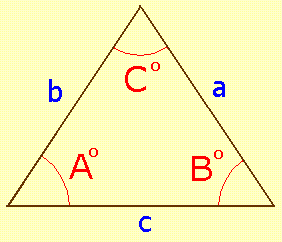
  • The convention for naming the sides and angles are as given below.

Solve Any Triangle

  • Just enter any 3 known parameters out of 6 parameters. For example, let us enter the following values.
    • Side a = 10
    • Side c = 9
    • Angle A = 70°
  • Cilck "Solve" button.
  • Now we can see that the software solves for the triangle computes and displays the 3 parameters, which have not entered as below.
    • Side b = 8.414397
    • Angle B = 52.250479°
    • Angle C = 57.749521°
  • You may see that the solved triangle getting drawn in the right side panel to the exact proportion.
  • You may use "Clear side data" button to erase the displayed values for sides and "Clear angle data" button to erase the displayed values for angles.
  • Important note : If you enter more than the 3 parameters, the software will take only the first 3 parameters and the rest will be ignored. For instance, if you enter values for "side a", "side c", "angle A" and "angle B", then the values for "side a", "side c" and "angle A" only will be taken into account and the "angle B" value will be ignored and over-written by the calculated value.

  • Special cases:

    • When you enter values for all 3 angles and do not specify the value for any side, it is a mathematically indeterminate problem with infinite number of solutions. In such a case the software will assume a value of unity for side c and then solves the triangle. A pop-up message will inform you regarding this assumption.

Additional Features:

  • Perimeter and Area : The software computes for the perimeter and area of the triangle also and they are displayed below the input boxes.

  • Print : If you want to take a printout of the triangle, it is easy. Just click the "Print" button on top. It opens the Printer dialog. Select options for printer, paper orientation and number of copies etc and then click print.

  • Save : If you want to save the triangle as an image, you can do so by clicking the "Save" button on top. It opens the Save dialog. Select a suitable location and name for the file and then click "Save".

www.myonline.tk's Fan Box

www.myonline.tk on Facebook